
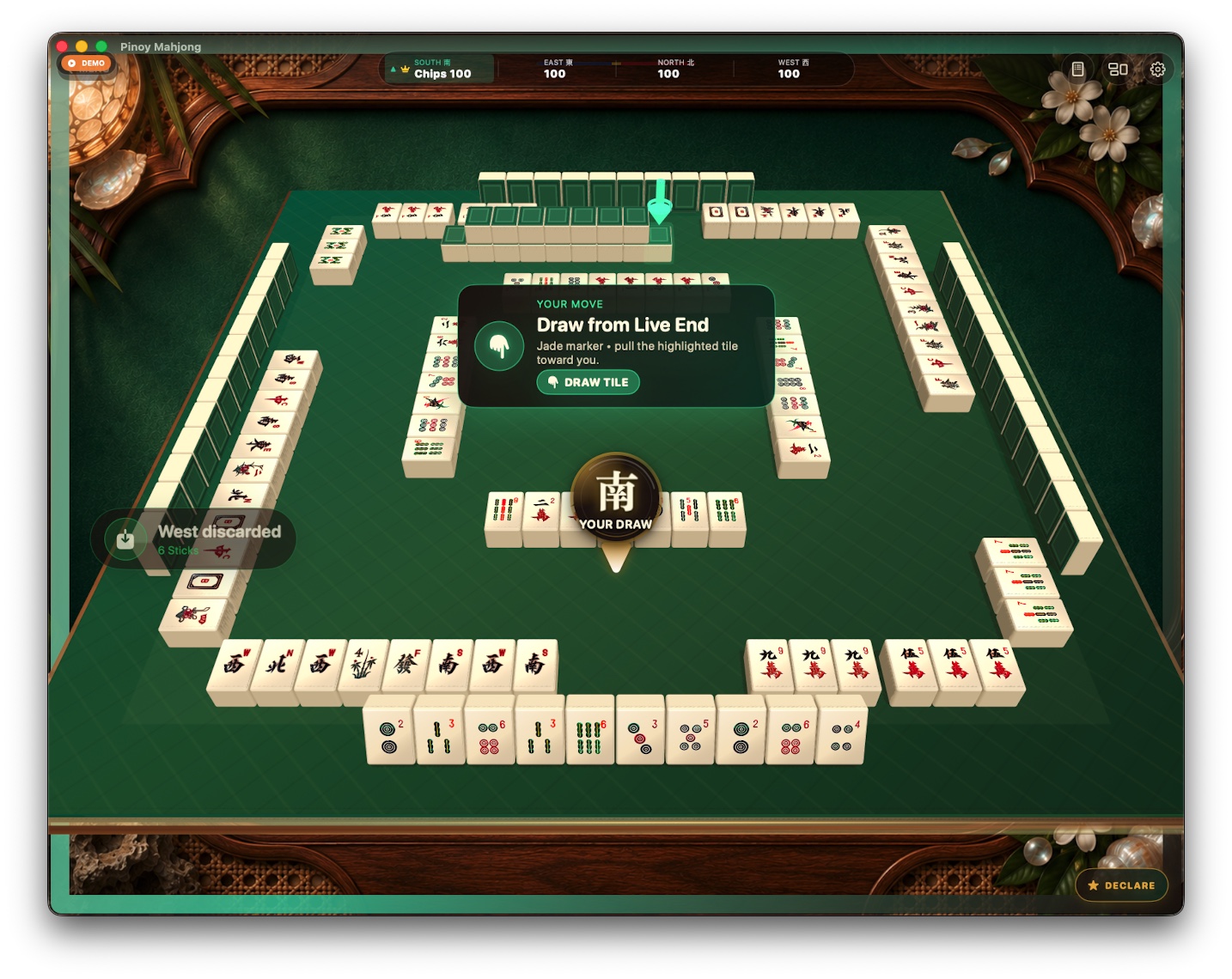
Guided Mode
Follow the highlighted move
A focused prompt explains the action and points to the tile or control you need.
Using the app
A visual walkthrough of your first hand, the controls that keep play clear, and the settings that make Pinoy Mahjong comfortable on Mac, iPhone, and iPad.
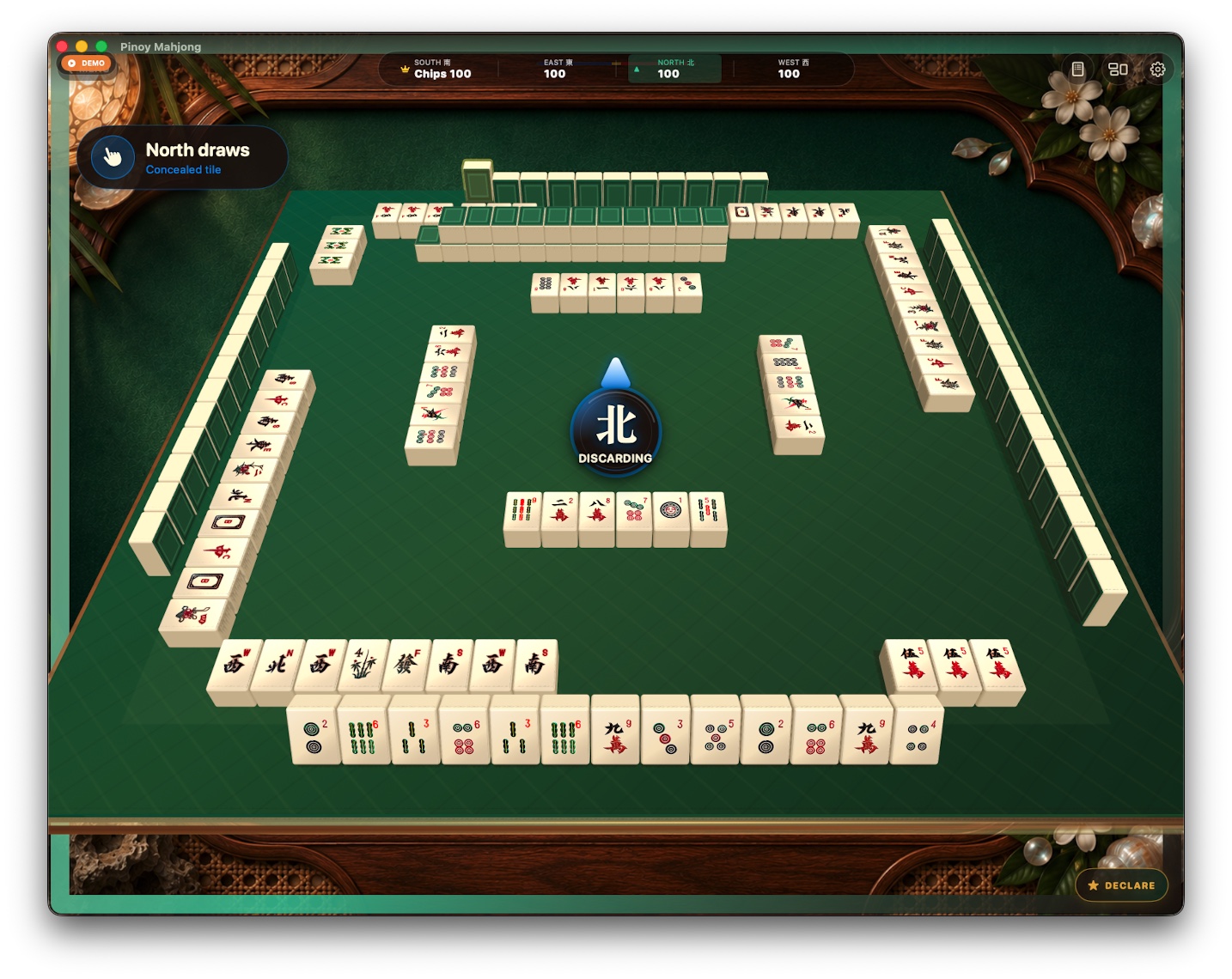
Know the table at a glance
Button placement can vary slightly by device, orientation, and app version, but the turn flow is the same.
Your first hand
You do not need to memorize every call first. Let the table surface the choices that are legal now.
Start with Guided Mode for visible prompts and extra context. Choose Classic when you want a quieter, faster table.
The center marker names the active seat and the current action, so you always know who is drawing or discarding.
When it is your turn, use the highlighted live end. Guided Mode points directly to the correct tile.
Use Sort when helpful, tap the tile you want to release, and confirm the discard when the app asks.
When Chow, Pong, Kang, Secret, Sagasa, or a win is available, the app presents the legal choices for that moment.
Open Table Log for the action sequence and Hand History for the result, chip movement, tiles, melds, and coaching note.
What the app is telling you
Guided Mode
A focused prompt explains the action and points to the tile or control you need.
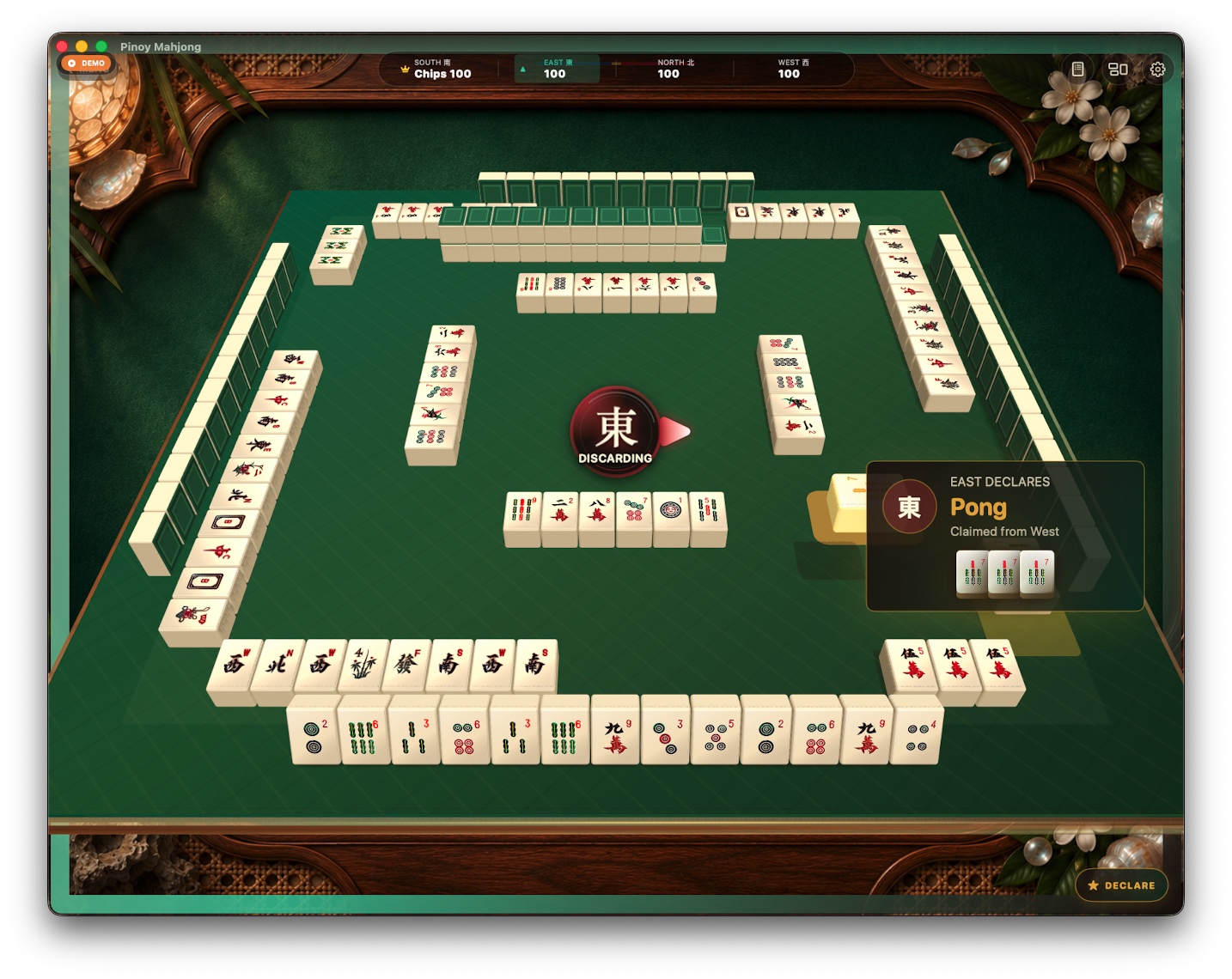
Calls
Call cards identify the seat, the declaration, the source of the claim, and the exposed group.
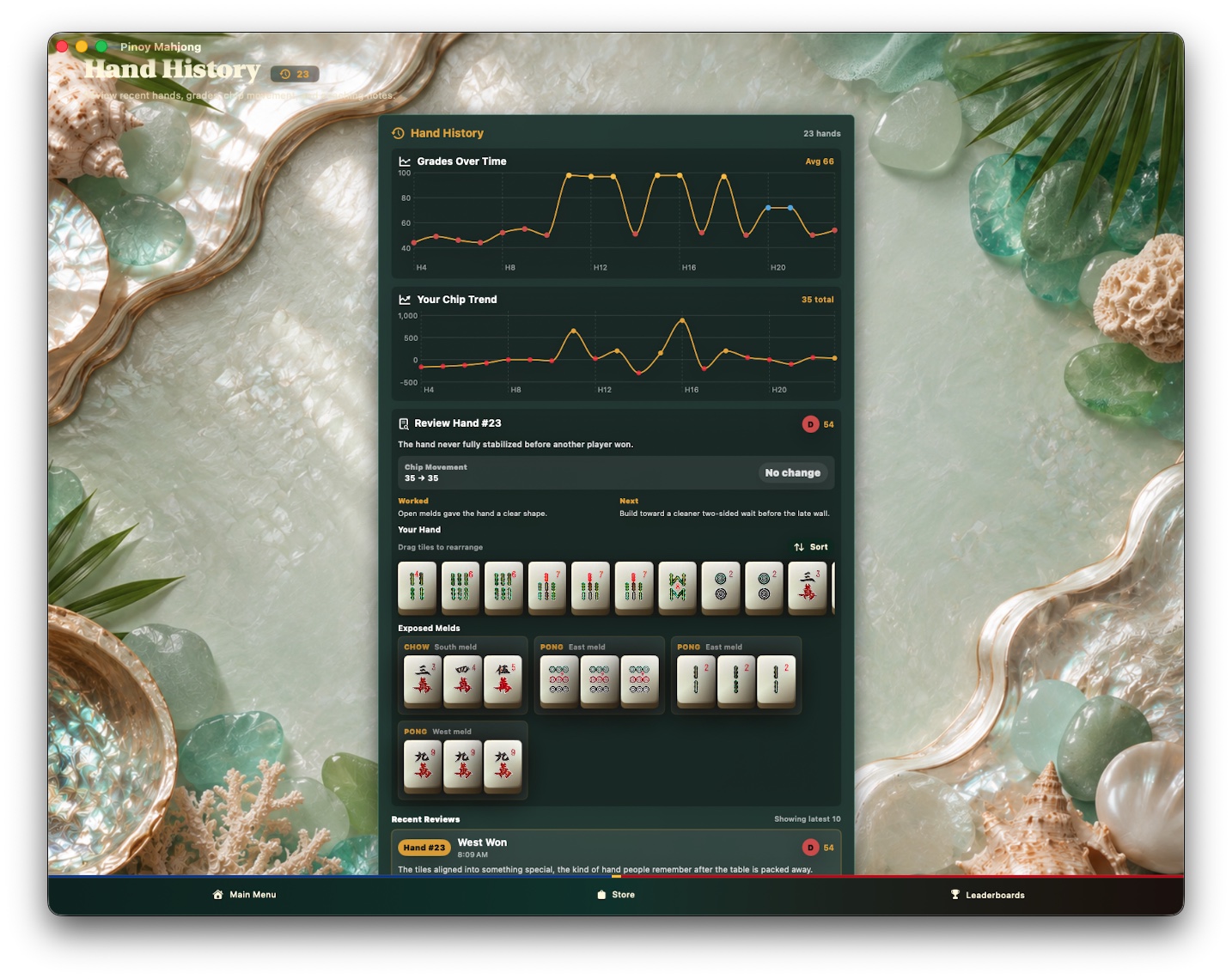
After the hand
Review the grade, chip movement, complete hand, exposed melds, and the next improvement to try.
Make it yours

Bahay is included. Browse optional themes in the Store, then select the atmosphere you want without changing the rules.
Use Guided Mode while learning and Classic Mode when you want fewer prompts. You can return to the more supportive mode whenever needed.
Open the gear during play to review the available sound and gameplay preferences for your device.
Use the display or layout control beside Settings when it appears to select the table presentation that feels clearest.
Sort is optional. Use it when you want a quick suit order, or leave the hand arranged your own way.
Open the Store and choose Restore while signed in with the Apple Account used for the original purchase.
Take it to the table
Print it for teaching night or keep it nearby on another screen while you play.